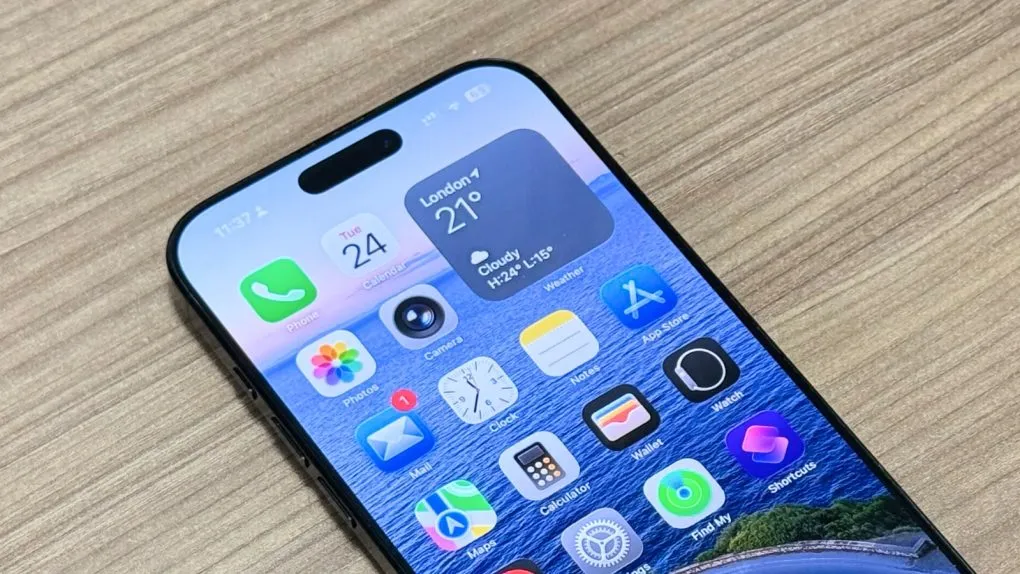
Apple has officially released the public beta of iOS 26, offering iPhone users an early opportunity to explore new features and enhancements ahead of the final rollout. This public beta cycle is part of Apple’s ongoing strategy to gather user feedback and refine software stability. However, downloading beta software also comes with inherent risks such as potential bugs and compatibility issues. For tech enthusiasts eager to experience iOS 26 firsthand, it’s crucial to understand the recommended steps for installation, data backup precautions, and practical tips to ensure a smooth transition. Here’s a professional guide on navigating this process responsibly.
---
What Makes iOS 26 Stand Out?
Apple’s iOS 26 introduces a suite of upgrades designed to enrich user experience, ranging from advanced personalization tools to deeper AI integration within core apps. While developers have been testing these features through preview builds, the public beta now extends that opportunity to a broader audience. This phase allows Apple to iron out glitches based on diverse user scenarios, helping to fine-tune the final release expected later this year.
---
Backing Up Your Data: A Non-Negotiable First Step
Before installing any beta software, safeguarding your personal data is paramount. Users are strongly advised to back up their iPhone via iCloud or by creating an encrypted backup through Finder (on Mac) or iTunes (on Windows). This ensures that in the event of unexpected crashes or software conflicts, all critical information — including photos, contacts, and app data — can be restored seamlessly.
---
How to Enroll and Install iOS 26 Public Beta
To access the iOS 26 public beta, navigate to Apple’s Beta Software Program settings directly on your iPhone. After signing in with your Apple ID, you can opt-in for the iOS beta under the “Beta Updates” section found in Settings > General > Software Update. Once enrolled, your device will detect the iOS 26 beta as an available update. Proceed by downloading and installing as you would with any standard iOS update, ensuring your device is connected to a stable Wi-Fi network and has ample battery charge.
---
Proceed with Caution: Beta Means Bugs
It’s important to remember that beta versions are works in progress. While many users enjoy previewing new features, performance inconsistencies and app compatibility issues are common. For this reason, professionals generally recommend installing beta software on secondary devices rather than a primary iPhone critical for work or daily life. This minimizes disruption if bugs lead to unexpected restarts or functionality gaps.
---
Looking Ahead: The Road to Final Release
Apple will continue refining iOS 26 based on user feedback collected during this public beta period. Participating not only gives users an early glimpse of the future iPhone experience but also contributes to shaping a more stable, polished final product. As always, keeping your device updated with subsequent beta builds will ensure you benefit from ongoing fixes and improvements.
Comments